How to Convert HEIC to JPG on iPhone
Need to upload photos to a website or share with a Windows user, but your iPhone photos are in HEIC format? Here is how to batch convert them.
Quick Answer
iPhones capture photos in Apple's high-efficiency HEIC format to save storage. However, HEIC images often fail to open on Windows PCs or upload to online forms. To convert HEIC to JPG on your iPhone, you can use the secure, free Compress app to batch-transcode photos offline in seconds. Alternatively, you can copy-paste files into the built-in iOS Files app (which automatically translates them to JPEGs) or adjust your camera settings under Settings > Camera > Formats to 'Most Compatible' for future shots. For existing library images, Compress is the simplest offline tool.
Simple Process
3 Steps to Batch Convert HEIC to JPG
Process dozens of HEIC files directly in the offline app.
Choose HEIC Photos
Open the Compress app and pick the HEIC photos you need to convert. Select up to 5 files in the free tier, or unlimited with Pro.
Set Format to JPEG
Select "JPEG" as the output format. You can optionally compress the image size or leave quality at 100% to keep maximum resolution.
Save and Share
Tap "Compress". The app transcodes the HEIC files offline and saves them as universally compatible JPEGs to your camera roll.
App Preview
Visual Guide
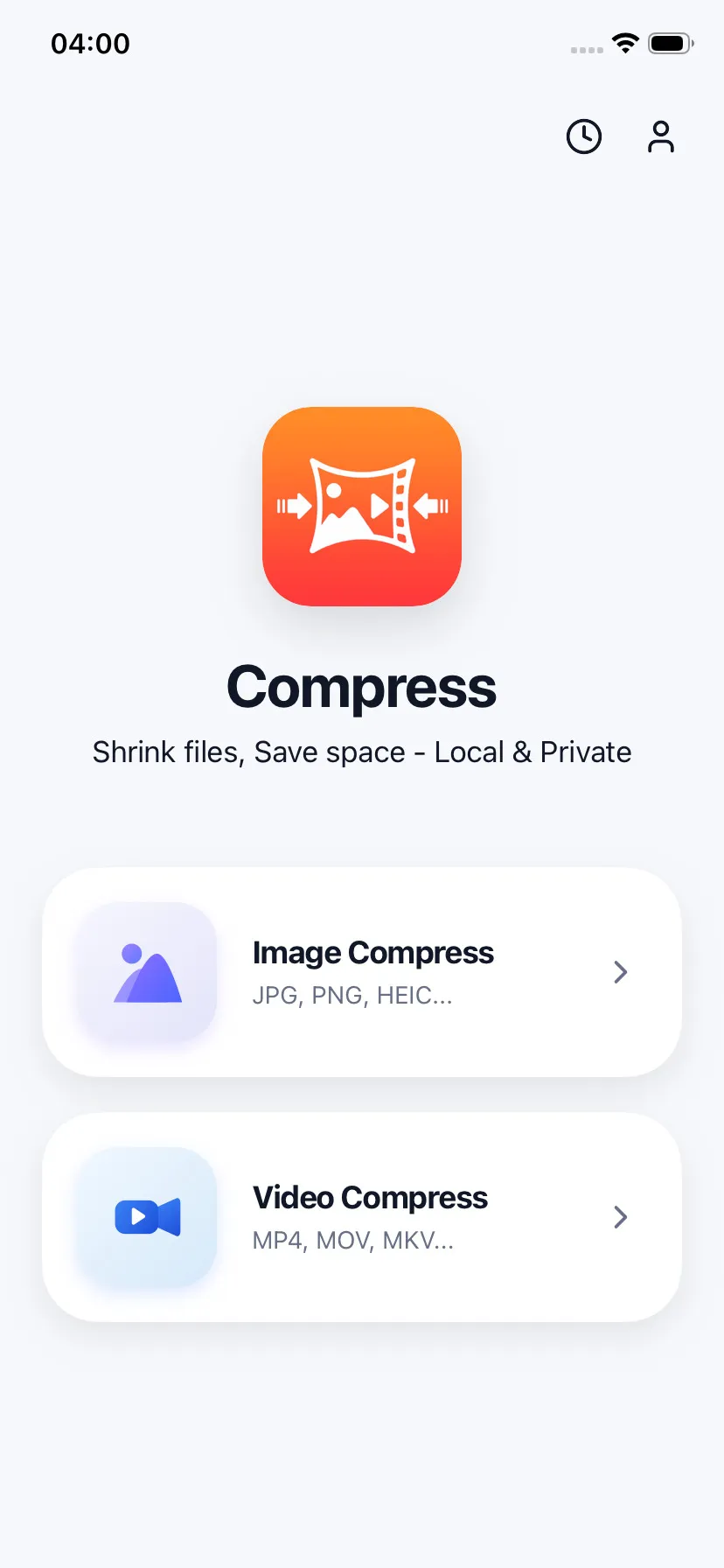
Batch-select HEIC photos from library
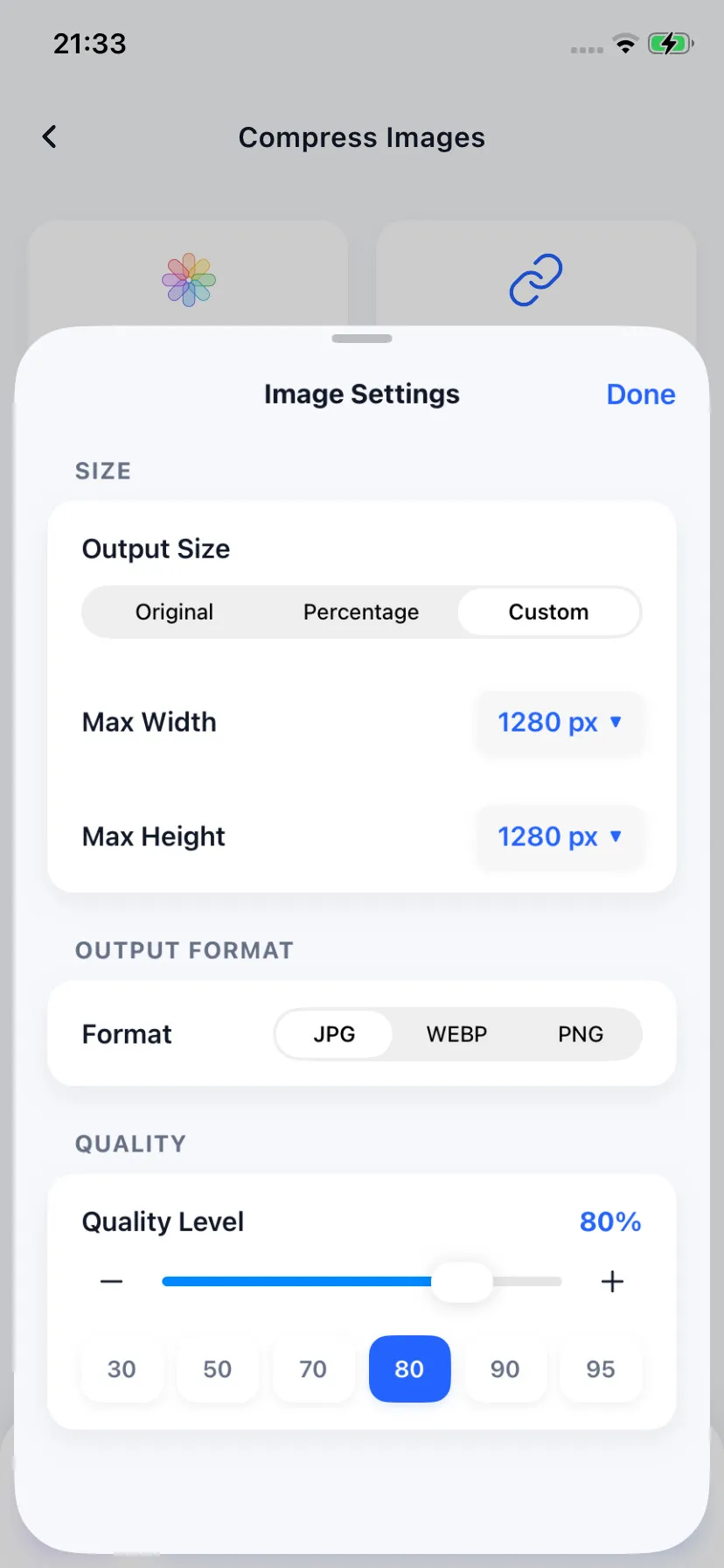
Choose JPEG or WebP output format
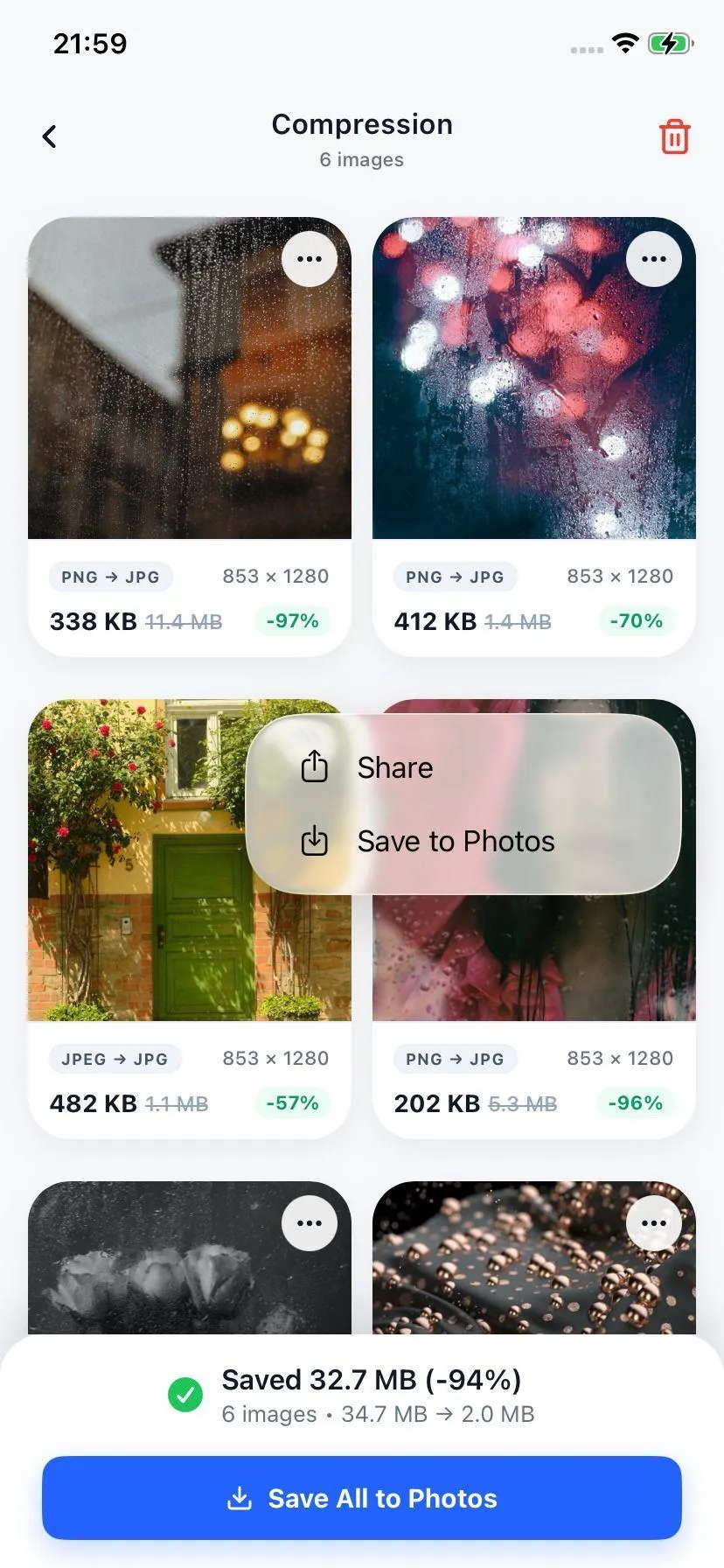
View outputs and save instantly
Specifications
Supported Transcoding Types
| Input Format | Available Outputs | Best For |
|---|---|---|
| HEIC (.heic) | JPEG (.jpg), PNG (.png), WebP (.webp) | Universal compatibility, web forms, sharing |
| Live Photos | JPEG (Extracts static frame) | Fast static image sharing |
Your Files Stay on Your Device
We care about your privacy. The Compress app transcodes HEIC files into JPEGs locally on your iPhone processor. Since no files ever leave your device sandbox, your pictures remain completely confidential.
FAQ
Common Questions
Why are my iPhone photos saved as HEIC instead of JPG?
Does converting HEIC to JPG reduce photo quality?
Can I set my iPhone to shoot in JPG format directly?

Ready to compress your media?
Download Compress for free on iOS and Android. Reclaim storage space and speed up sharing with secure on-device optimization.